
Runs and logs
Open a run to follow it live, read its logs, stop it or run it again. Runs need a cluster connected through the connector, which comes with the Production and Business plans.
Find a run
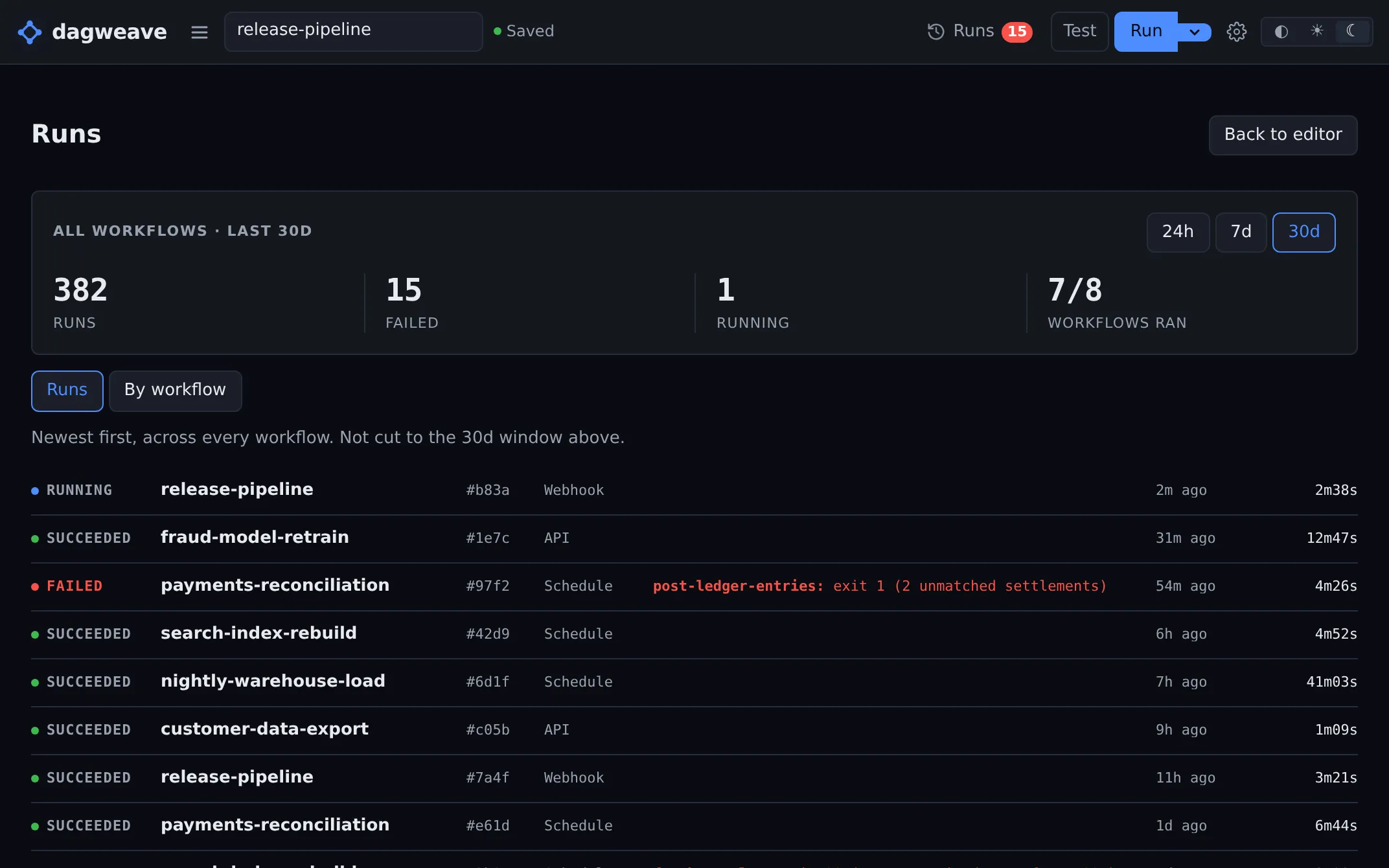
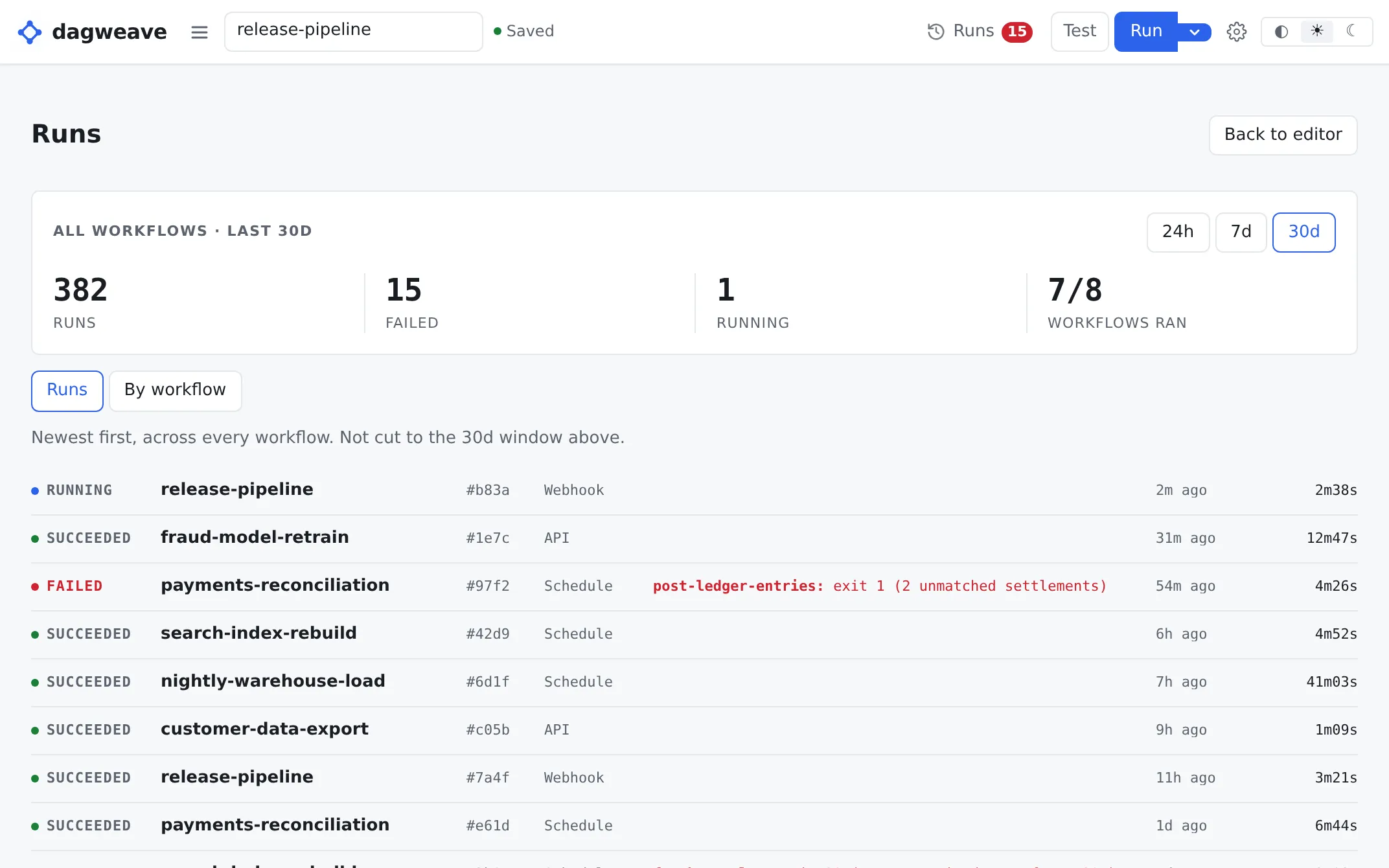
Section titled “Find a run”Click Runs in the top bar for every run in the last 30 days, newest first. 24h and 7d narrow the list and the totals above it together. The red badge counts failed runs in the last 30 days, and clicking it opens the failed ones.
The totals are filters too: click Failed or Running for those runs, or
Runs for all of them. The All, Failed, Running and Queued
tabs do the same, and Show test runs adds test runs, which are hidden by
default. The screen lives at /runs, a filter at /runs?phase=failed, and each
run at /runs/<run id>, so you can paste any of them to a teammate. If your plan
has no run metrics, there are no totals and no window, and the list shows every
run.
For one workflow’s runs, open the workflow menu and choose Runs for this workflow. It has the same tabs and Show test runs. On the Runs screen’s By workflow view, opening a workflow’s row shows its runs, only the failed ones when the Failed filter is on, with Open workflow and Runs for this workflow above them.
| Phase | Meaning |
|---|---|
| Queued | Waiting in Dagweave’s queue. Nothing has been sent to a cluster. |
| Pending | Sent to the cluster and waiting for its first step to start. |
| Running | Steps are running on the cluster. |
| Succeeded | Every step finished without an error. |
| Failed | A step ran and failed, usually by exiting non-zero. Read that step’s logs. |
| Error | Argo couldn’t run a step because of a pod, volume or controller problem. Look at the cluster, not the step’s logs. |
Hover a phase to see Argo’s name for it.
Each row shows what started the run: the person’s email for a manual run, or Schedule, Webhook, GitHub, S3 event or SNS message. A run started over the API shows as a manual run.
Workflows on the cluster that Dagweave didn’t start, like CronWorkflow runs or an
argo submit, get their own section below the list. See
runs you did not start.
In Clusters, each of your machines has a Runs button that opens the list cut to that machine.
Watch a run live
Section titled “Watch a run live”Start a run from the canvas and a panel follows it, tinting each step by phase and showing progress, elapsed time and an ETA. The ETA is the workflow’s median successful run time over the last 30 days, minus the time so far. If a proxy breaks the live stream, the panel says so and polls instead.
Click Logs on the panel for the run’s detail view, or click a step on the canvas to open the run on that step. While the panel is up, clicking a step the run has reached opens its logs rather than its settings. Close the panel to edit again.
A run waiting in Dagweave’s queue says how many of your team’s runs are ahead of it, and Cancel run on the panel takes it out.
Find the failing step
Section titled “Find the failing step”A failed run names the failing step and its error in the run list, on the canvas and at the top of the run view. The canvas centres on the failed step, and clicking its name in the panel takes you back there. In the run view it’s already open with its logs loading.
A non-zero exit shows its code. Three get names: 137 is SIGKILL (usually the out-of-memory killer), 139 is a segmentation fault and 143 is SIGTERM.
What a run ran with
Section titled “What a run ran with”Under the run’s id, the run view names its workflow, with Open workflow and Runs for this workflow, and the cluster, namespace and Argo workflow name it ran as, with a link to Clusters. It lists the parameters the run started with, which are the ones Re-run uses. A run started by a trigger names the trigger’s type, its schedule, branch or topic, and its id from the Triggers list.
Changes since the previous run names the run it compared against, and clicking it opens that run.
/workflows/<workflow id> opens a workflow in the editor, so a link to a run and a
link to its workflow can both be shared.
Read a run’s outputs
Section titled “Read a run’s outputs”Output parameters from the workflow or its steps are listed under Outputs in the run view. The API and MCP return them too, so whoever started a run can read, say, the URL of the environment it created.
Values over 4 KB are cut short. If a name or value looks like a credential, such as a password, token, private key or URL with a password in it, the value is hidden and never leaves your cluster.
Read step logs
Section titled “Read step logs”Click a step in the run view. What you see depends on where the connector ships logs:
| Log sink | What Dagweave shows |
|---|---|
| S3 or an S3-compatible bucket | The object’s location in your bucket. The log bytes never pass through Dagweave. |
| Dagweave-hosted Loki | The log lines, inline. This is the only sink that sends log bytes to Dagweave. |
Your own Loki, an HTTP endpoint, or console (the chart’s default) |
Nothing. Read the logs wherever you send them. Opening a step tells you this and links to how to send them to Dagweave. |
Inline logs come from the step’s main container. Click Show all
containers to add Argo’s own. You get the last 200 lines, and Load up to
5,000 lines if there are more.
Logs usually land a few seconds after a step writes them. Until then the step reads Loading logs…. A running step keeps its logs up to date while it’s open. If nothing arrives after a couple of minutes, it reads No logs yet and offers Refresh logs.
Hosted logs are kept for the time your team chooses or until its log storage is full, whichever comes first, and the oldest go first. See Log storage. Logs in your own bucket follow your own storage policy.
Check a workflow’s health
Section titled “Check a workflow’s health”Runs for this workflow opens with a 30-day summary. Switch to 24h or 7d to narrow it. You get:
- success rate
- p50, p95 and average run time, from successful runs only
- run count, with a daily chart
- which triggers started the runs
The By workflow view on the Runs screen shows the same figures for every workflow, least healthy first.
Run metrics need Production or Business. Other plans get the run list.
Cancel or stop a run
Section titled “Cancel or stop a run”Cancel run takes a Queued run out of the queue. It doesn’t count toward the month’s runs.
Stop run on a Pending or Running run does what argo stop does: it
sets spec.shutdown: Stop on the Workflow. Running steps stop, exit handlers
still run, and Argo marks the run Failed.
To stop a run you did not start, stop it on its cluster.
Terminate, suspend, resume or retry a run
Section titled “Terminate, suspend, resume or retry a run”These sit beside Stop run in the run view and do what the Argo CLI does. They need the run to have reached its cluster, and none of them works on a run you did not start.
| Button | Shown on | What it does |
|---|---|---|
| Suspend run | Pending or Running runs | Does what argo suspend does: sets spec.suspend: true. Steps already running finish, and no new ones start. |
| Resume run | A run with a suspend step that is waiting, or one you suspended from this view | Does what argo resume does: clears spec.suspend and lets every waiting suspend step go. |
| Terminate run | Pending or Running runs | Does what argo terminate does: sets spec.shutdown: Terminate. The run ends at once and exit handlers don’t run. It asks first. |
| Retry run | Failed or Errored runs | Does what argo retry does: the same run goes on from its failed steps. Steps that succeeded are kept and the run goes back to Running. |
Suspend isn’t available once a run is stopping: after Stop run or
Terminate run, Suspend run is off, and the API and MCP tool answer 409.
Re-run is different from Retry run. Re-run starts a new run of the workflow from the beginning, as Argo’s resubmit does. Retry keeps the run you are looking at.
Suspend and terminate work through the same permission as stop. Resume run
and Retry run also need connector 0.16.0 or later, because they change the
Workflow’s step status and delete the failed steps’ pods. On an older connector
both buttons are off, and hovering one says why. Chart 0.16.0 gives the
connector delete on core pods in the namespaces it serves, and no more. A
connector that updated itself to 0.16.0 without a chart upgrade has the new
code and the old permissions, so the cluster refuses a retry until you run
helm upgrade on the chart. A run from your own machine can only be acted on by
the machine’s owner.
Run it again
Section titled “Run it again”Open a run and click Re-run. You get the same workflow on the same cluster and namespace with the same parameters, which the run view lists, recorded as a manual run by you. A test run re-runs as a test run.
On your phone
Section titled “On your phone”Open app.dagweave.com in your phone’s browser. Runs lists every run, newest first, with running and failed runs marked. Tap a run to see its steps, and a step to read its logs. You can stop a run or run it again, and suspend, terminate or retry one.
To start a workflow, tap Start a run, pick it, fill in any parameters and tap Run. Its manual triggers are there too, with Run now. Triggers lists every trigger your team has, grouped by workflow, and each one has Run now.
Building and editing workflows needs a computer. Links work on both, so a run someone sends you opens on your phone.
Get told when a run fails
Section titled “Get told when a run fails”In Team settings, open Notifications and tick Alert when a run fails. With the address box blank, the email goes to every owner of the team, and the pane lists who they are. Enter an address to send it there instead. Add a Slack incoming-webhook URL and every alert you’ve ticked posts to that channel as well, whoever the email goes to.
The message names the workflow, the failing step and the error, and links to the run. You get one per run. If the connector later reports the run didn’t fail after all, Dagweave sends a correction.
Alert when a cluster goes offline is separate and on by default. You get
one message per outage, on the same channels, naming the cluster and linking to
Clusters (/settings/clusters), where you can see its status and read its
logs.
There’s no message when a run succeeds.