
Push to Git
Push to Git commits a workflow’s compiled YAML to a GitHub repository, straight to a branch or as a pull request. Whatever deploys that repository picks it up from there. You don’t need a connected cluster.
It needs the Developer plan or above. On any plan you can copy or download the YAML from Get YAML.
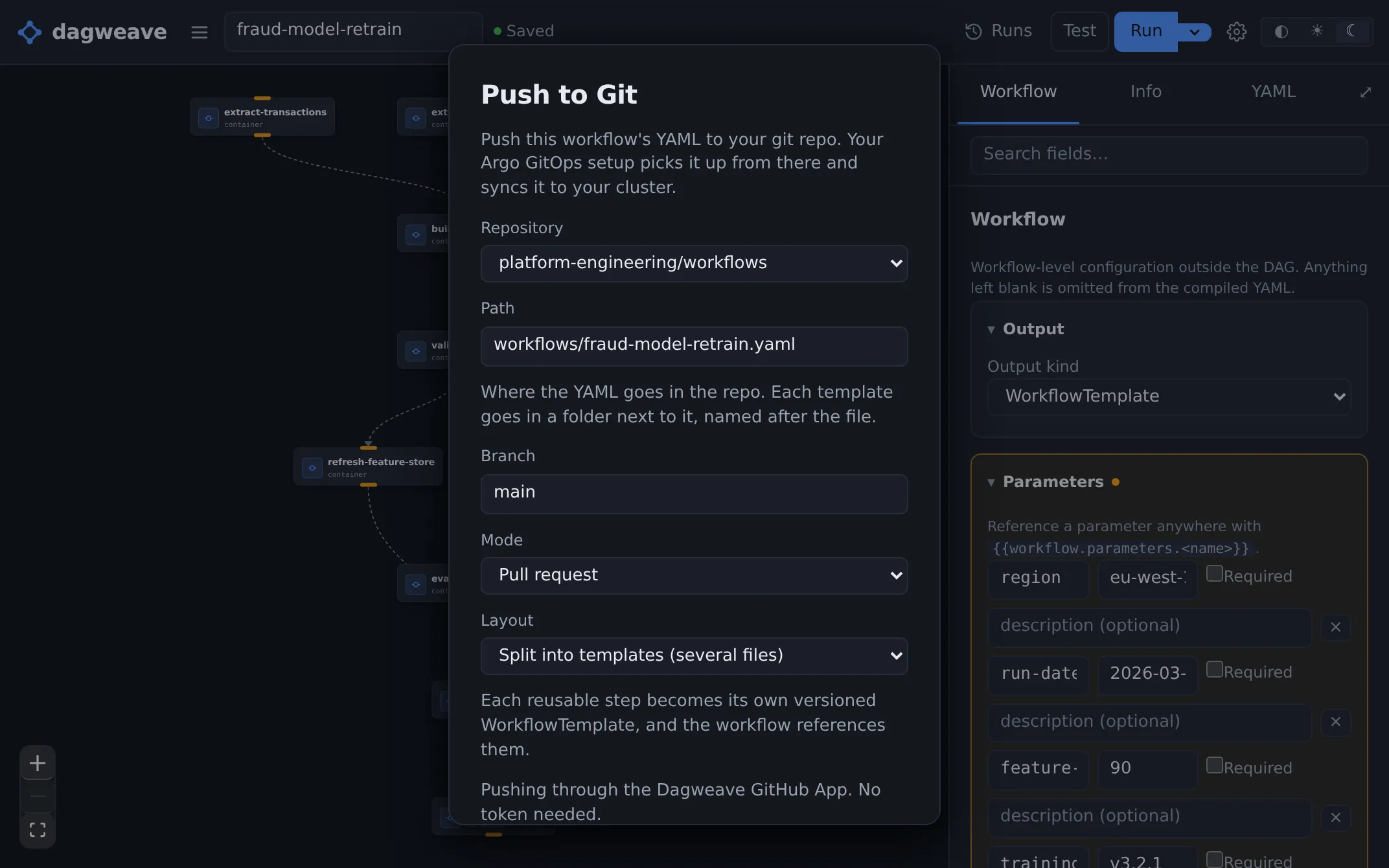
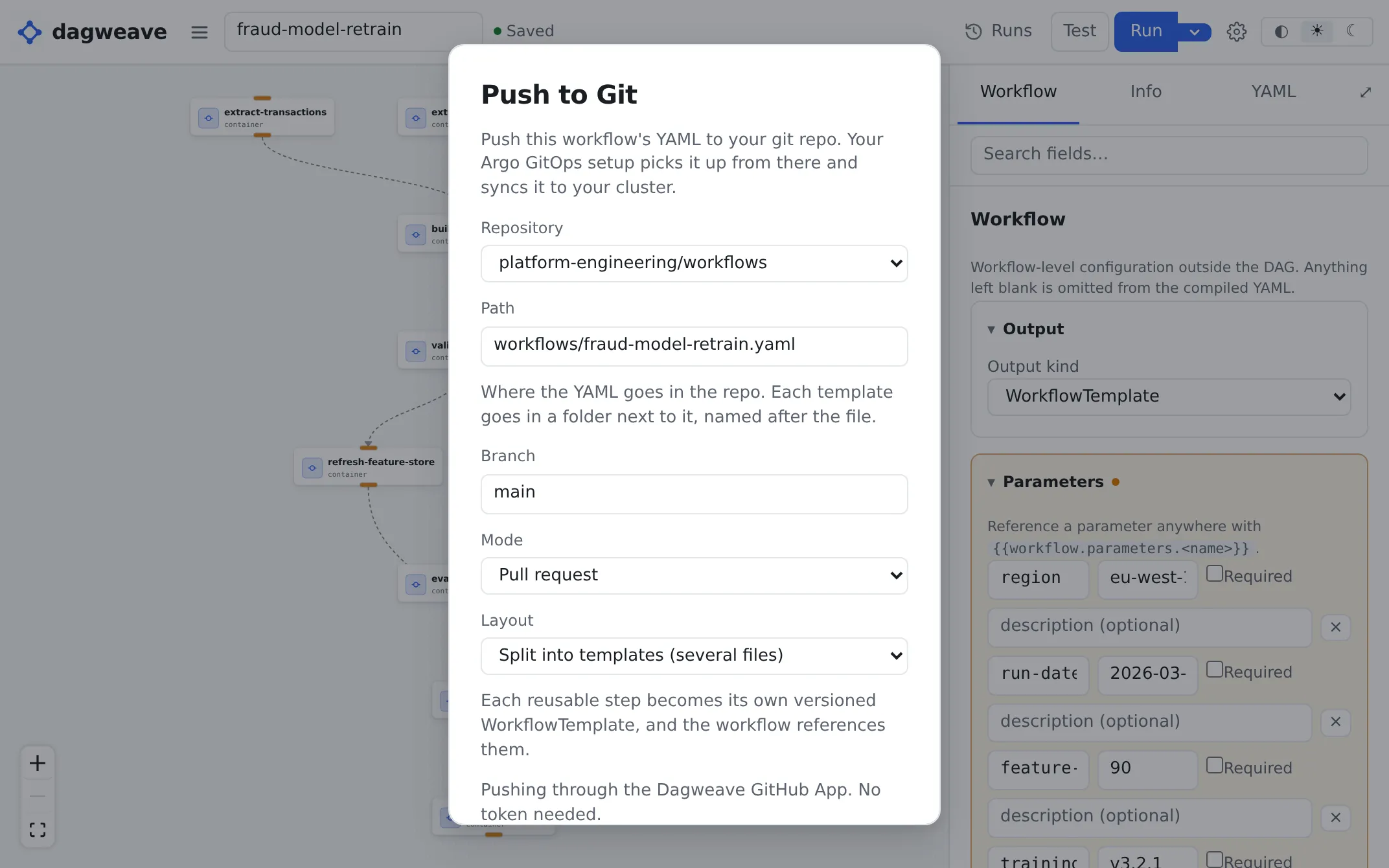
Open the caret next to Run and choose Push to Git. (Publish as WorkflowTemplate, in the workflow menu, is something else: it adds the workflow to your team’s WorkflowTemplates.) Push to Git stays off until the workflow is saved. A canvas saves itself once it has a step.
Choose a repository
Section titled “Choose a repository”If the Dagweave GitHub App is connected to your team, pick a repository from the Repository dropdown. There’s nothing to paste.
- Connect GitHub showing? The App isn’t connected to your team yet. Only an Owner or Admin can connect it.
- No repositories listed? Click Choose repositories on GitHub and grant some.
To use a token instead, click Use a personal access token instead (you land
there directly if the App isn’t set up). Enter the repository as owner/name
and paste a token with repo scope into GitHub token. It’s used for this
push only and not stored.
A workflow linked to a file in Git always pushes to that file and branch. See WorkflowTemplates from Git.
Git integration in the settings menu lists the repositories the App can reach. Import on a row opens Import on that repository. If it says Not configured, this server has no GitHub App, so pushes use a token.
Connected to the wrong team
Section titled “Connected to the wrong team”A GitHub account belongs to the team that connected it. If the wrong team connected it, an owner of that team can press Disconnect next to the account in Git integration. Before you confirm, it lists the workflows linked to files on that account. Disconnecting unlinks them, and they stay as ordinary workflows with their current steps. GitHub triggers on its repositories stop until someone connects the account again. The right team can do that from the same screen.
The connect page names the team an installation will join, so check it before you press Connect.
Set the push options
Section titled “Set the push options”| Option | What it does |
|---|---|
| Path | Where the file goes. Defaults to argo/<workflow-name>.yaml, lower-cased, with anything but letters and digits turned into dashes. |
| Branch | The branch to commit to or open the pull request against. Defaults to the repository’s default branch with the App, or main with a token. |
| Mode | Pull request or Direct commit. |
| Layout | Split into WorkflowTemplates (several files) or Single file. See Which layout to pick. |
Click Open pull request or Commit to your branch. The dialog then links to the pull request or commit.
Where to put the file
Section titled “Where to put the file”In a folder of its own, like the default argo/. Not .github/workflows/:
- GitHub treats every YAML file there as an Actions workflow, so each push shows up as a failed run in the Actions tab.
- A token needs
workflowscope to write there. One with onlyrepofails.
The dialog warns you if the path starts with .github/workflows/.
Which layout to pick
Section titled “Which layout to pick”Single file puts every step inline in one file. It’s the easiest to read and apply.
Split into WorkflowTemplates writes the workflow at your path and each
reusable step as its own versioned WorkflowTemplate, all in one commit. The
WorkflowTemplates go in a folder named after the file: push to
workflows/hello.yaml and they land in workflows/hello/. Pick this if
workflows share WorkflowTemplates and you want to version each one separately.
After the push
Section titled “After the push”To keep the workflow in step with the file you wrote, tick Keep this workflow linked to the file. It needs a repository the GitHub App can reach and the Single file layout. With a direct commit it links as soon as the commit lands. With a pull request the file isn’t on the branch until the pull request merges, so the dialog offers Link to the file to press after that.
Dagweave doesn’t apply the YAML. Argo CD, a kubectl apply step in CI, or
whatever watches the repository does that.
To have Dagweave run it instead, connect a cluster and add a trigger.
Other Git hosts
Section titled “Other Git hosts”Push to Git works with GitHub only.